NetHydra Installation - Book Guide.
Single boot installations
Before we start please make sure you have ready to backup your data, This process will Wipe your data on the Disk
1.1 Preparation
I’m sure you have already know how to Installing “OS” using calamares, but don’t worries we will give you guide if you doesnt know.
make sure you have ISO image from Official NetHydra site (if you don’t know how to download clickme).
second step you need burn ISO image to your Media such FLASHDRIVE or CD doesn’t know how to burn? clickme.
next step you need to boot into NetHydra Live environment, but before thats you need to disable secure boot first.
second step after you disable secure boot time to boot Hydra environment! you need to plugin your Hydra media like flashdrive into your computer, then reboot your computer for entering boot chooser select media/drive you already burned.
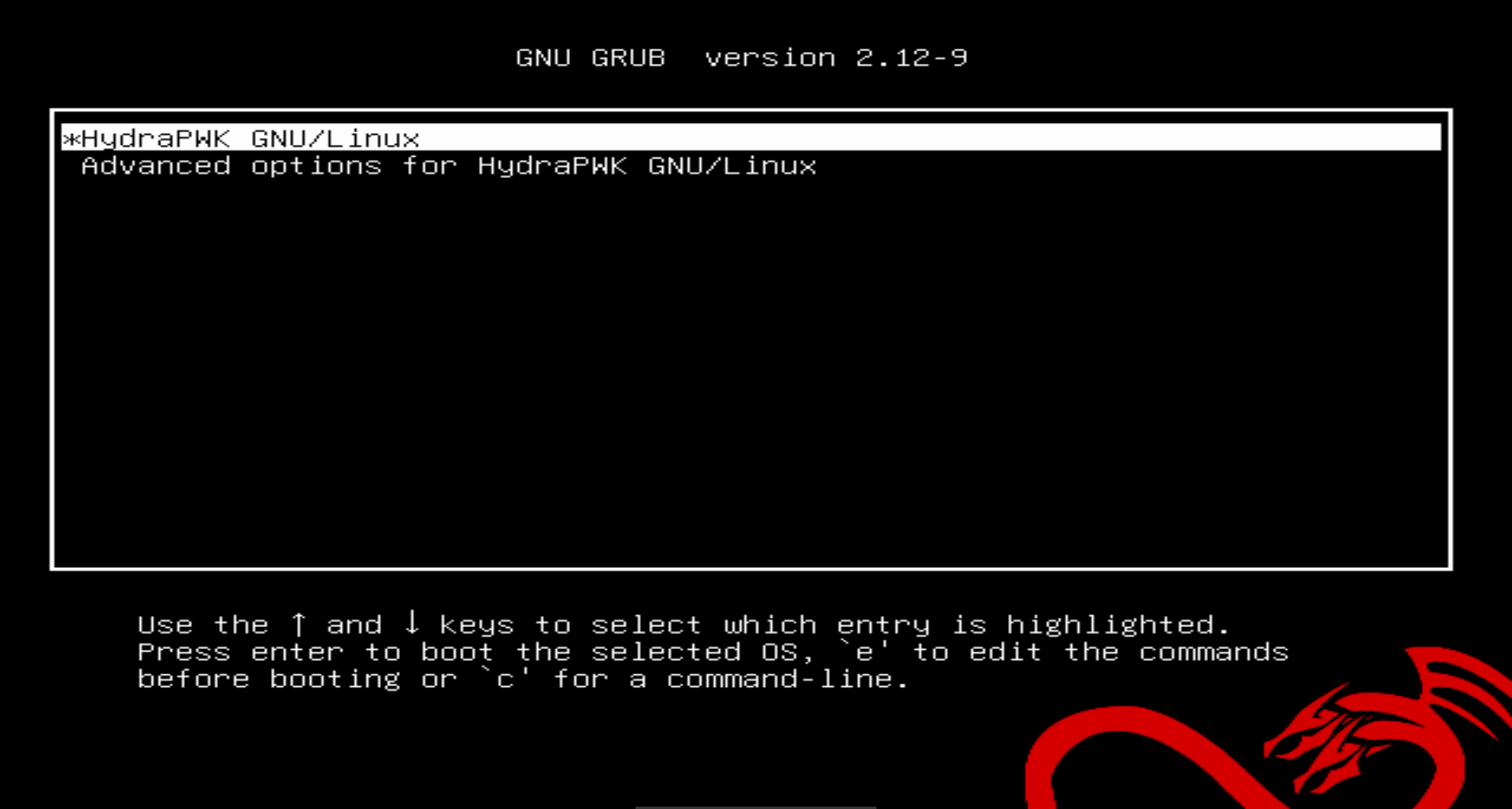
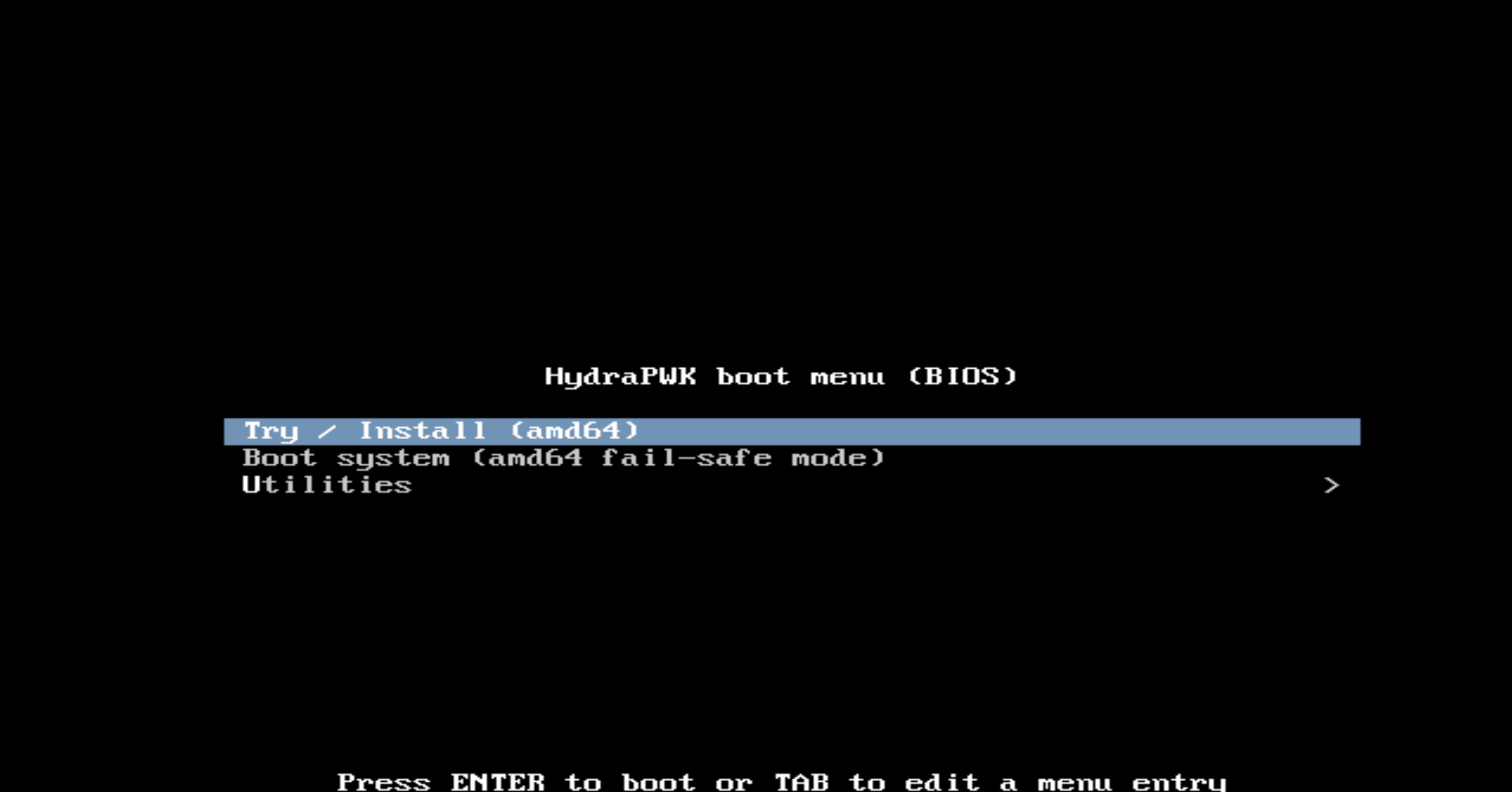
GRUB will show up, just press enter (“Try/Install”).
1.3 NetHydra Environment
in some version release Hydra you may should login and you can enter user nethydra and password nethydra. for sonar default cred user: sonar password: nethydra
after you success login you will seen Desktop icon with label “Install NetHydra” just double click thats icon.
In some case you need launch manually, just open terminal and type “sudo debian-install” may you need entering password nethydrda
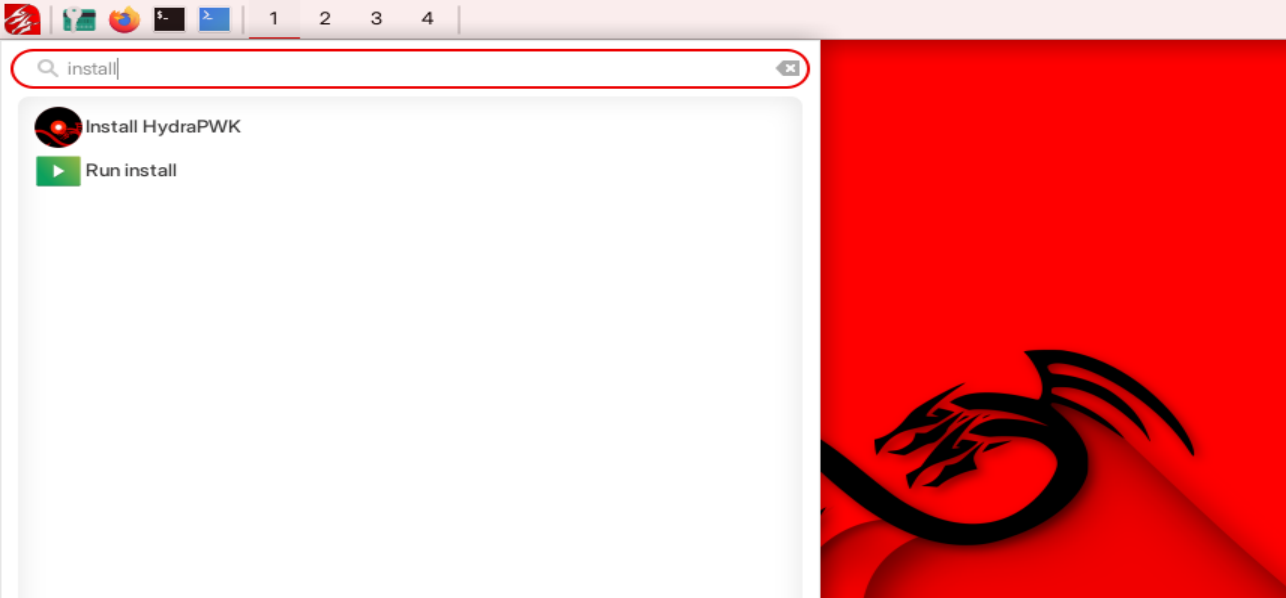
Or not you can click applications launcher and type “Install NetHydra”
2.1 NetHydra calamares - Welcome
In this step you must have Installation welcome screen may will like this.
PS: Different Hydra Version Different UI.
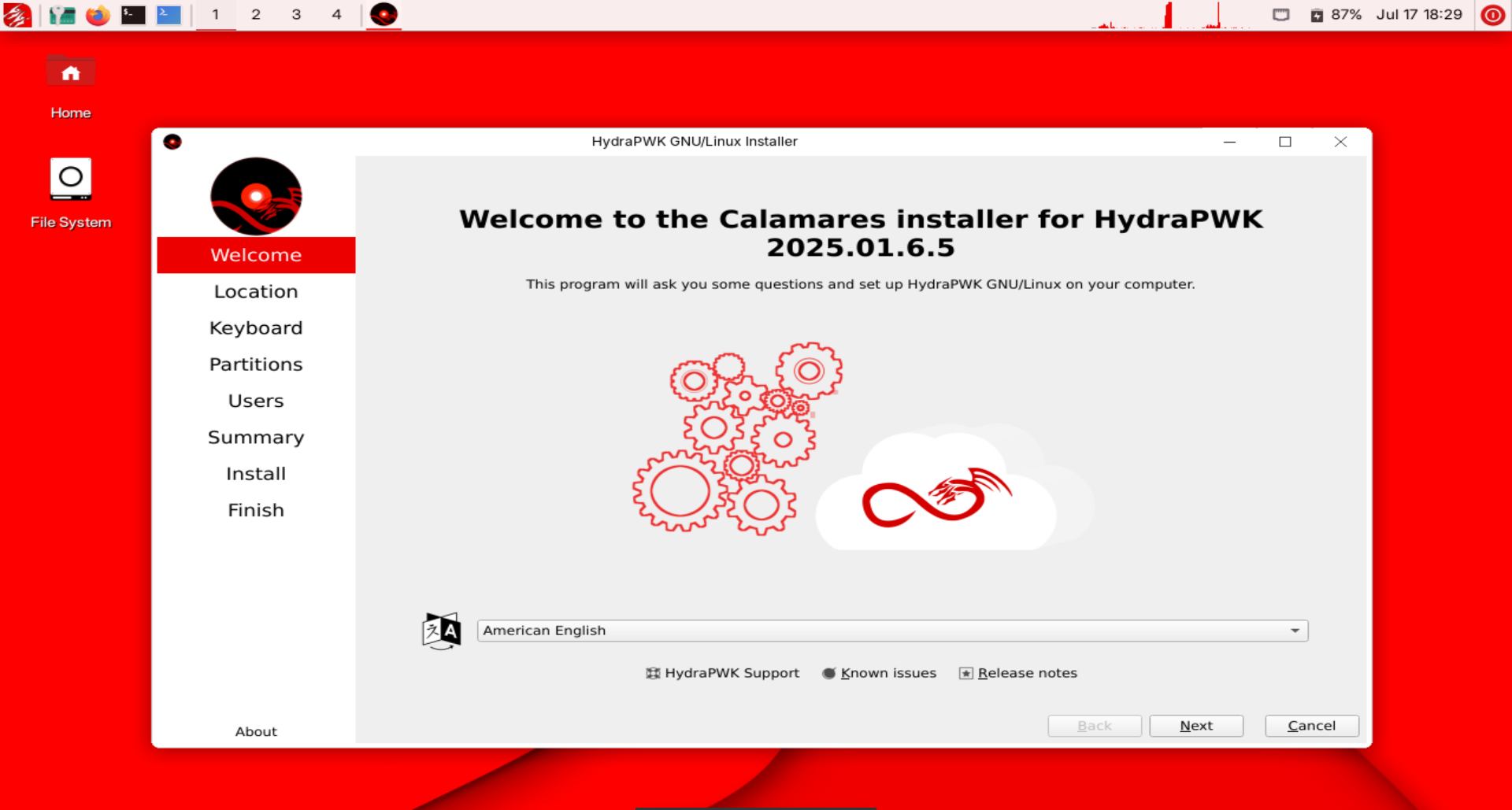
You can choise your language (default is American english).
you can click next if you sure what are you choise.
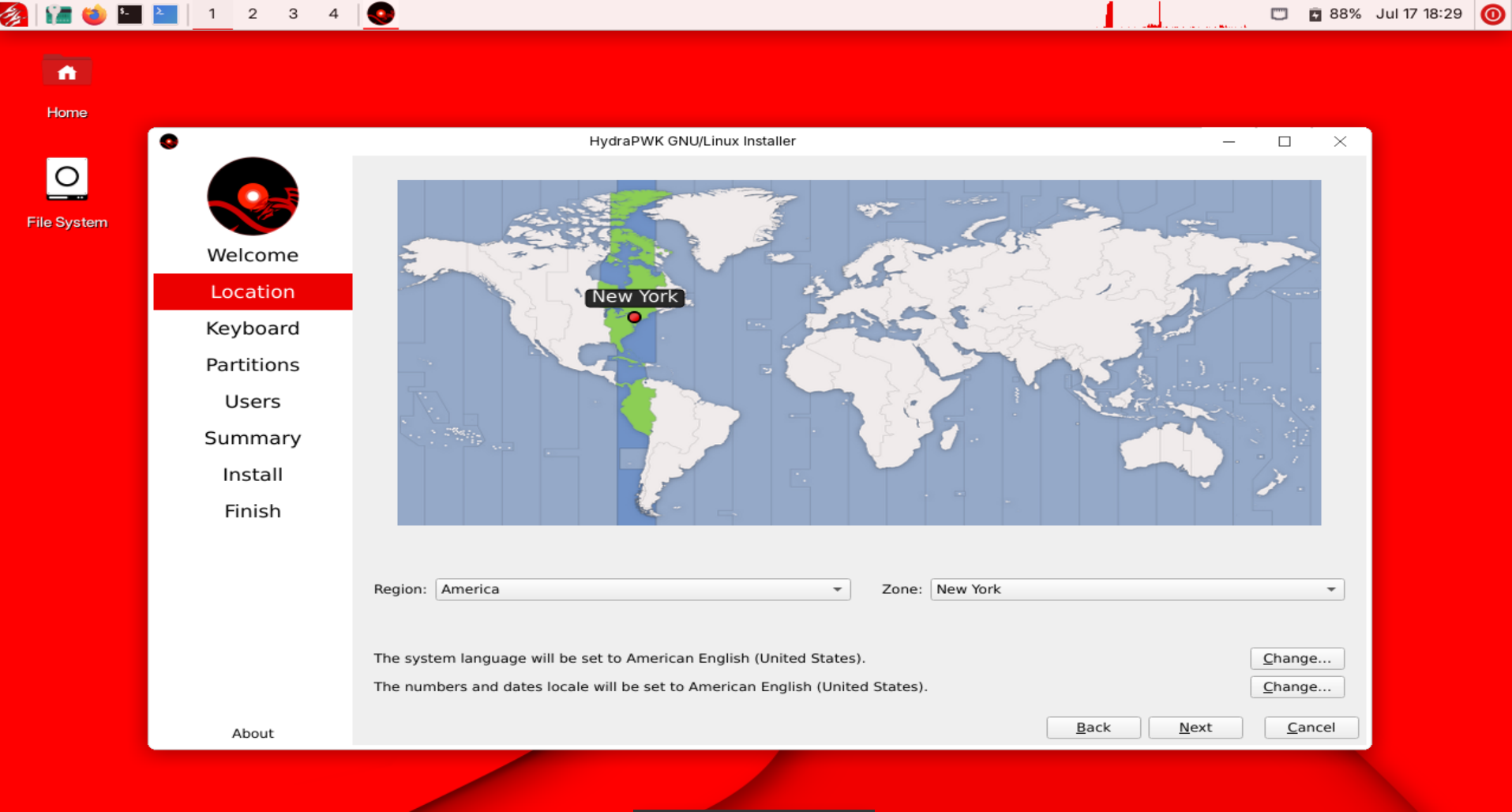
2.2 NetHydra calamares - Location and Date.
In this step you may will see like this.
You can set your default region and timezone
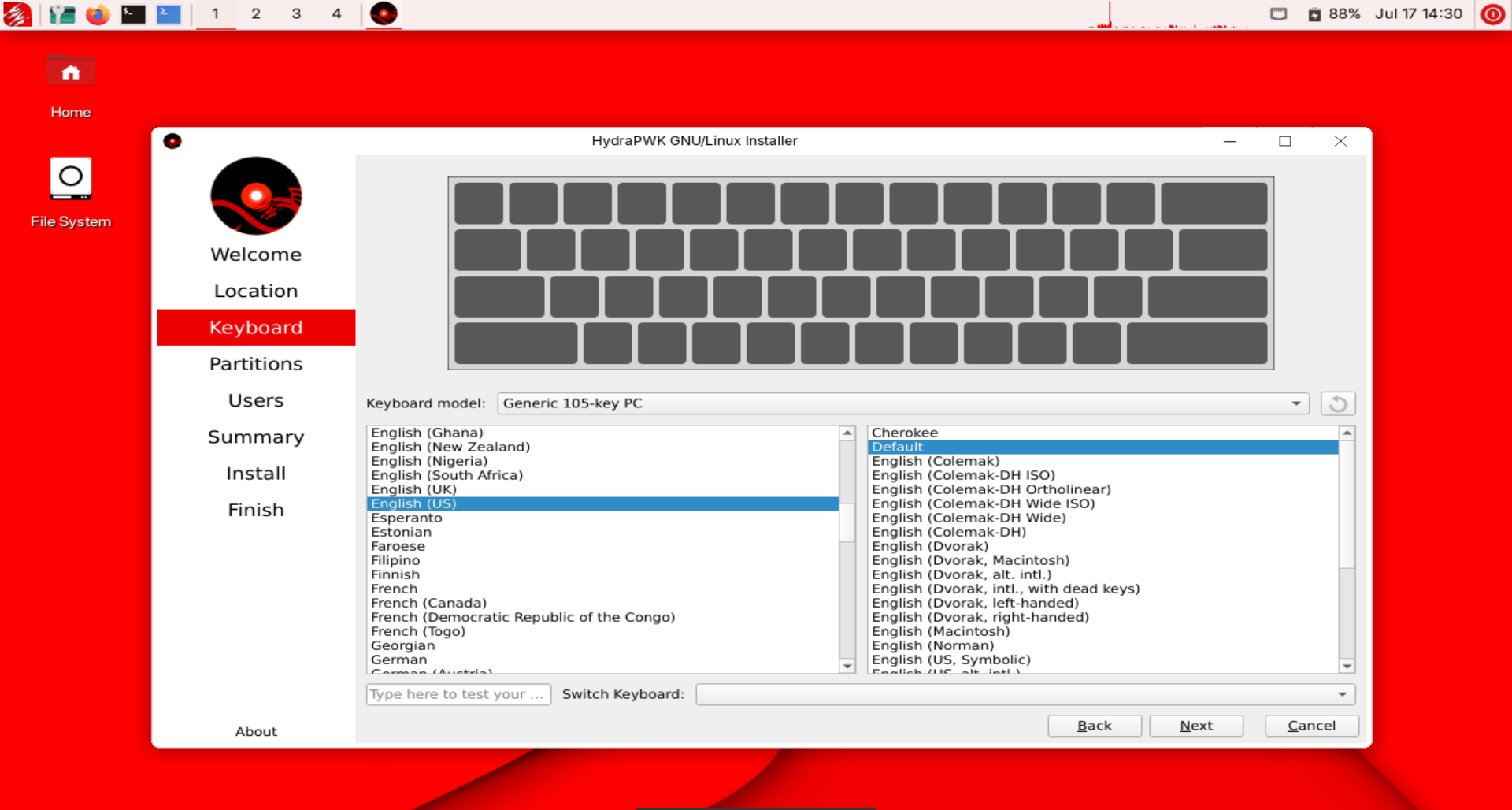
2.3 NetHydra calamares - Keyboard.
In this step you may will see like this. just choose your keyboard setup configuration.
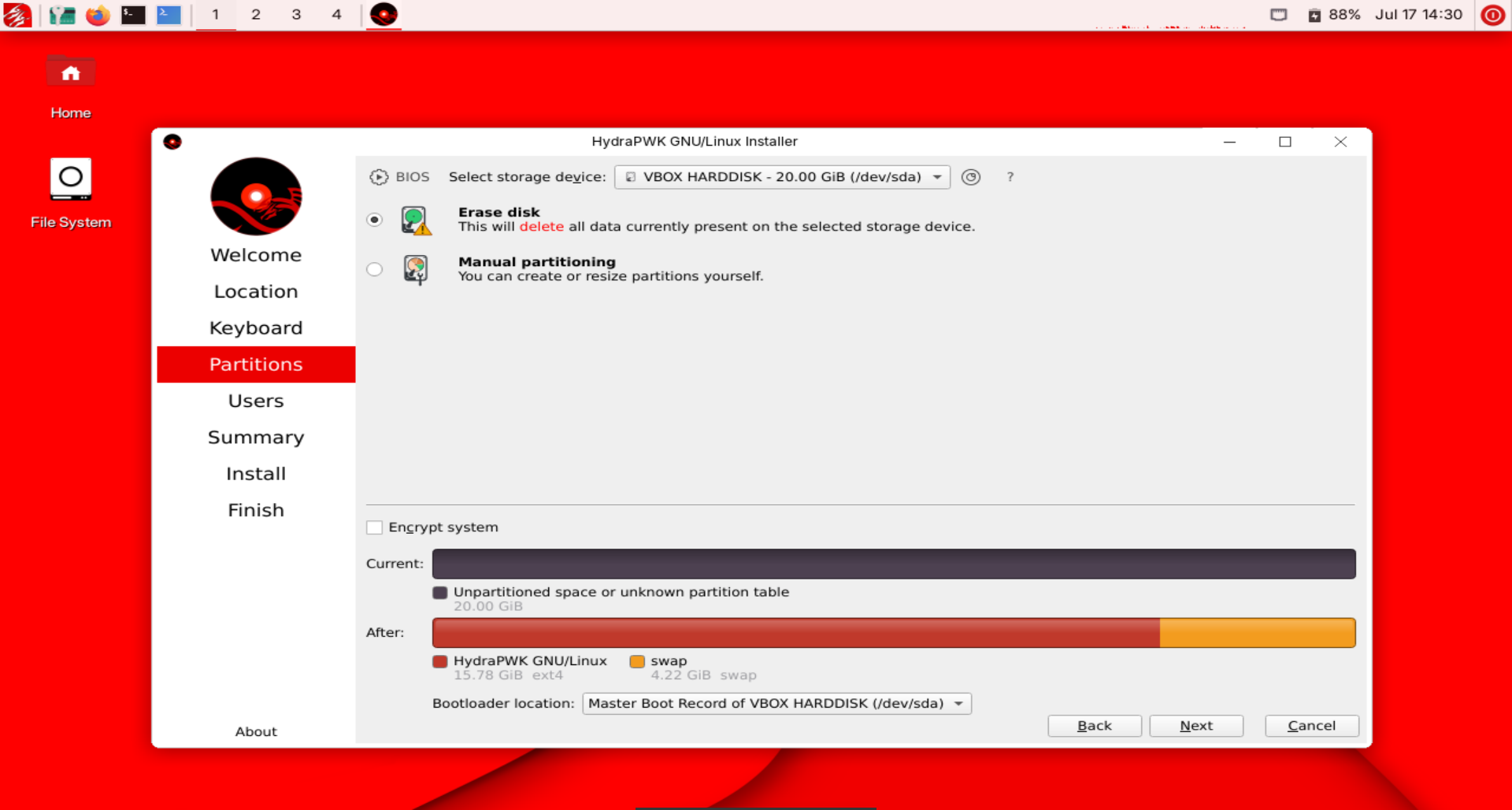
2.4 NetHydra calamares - Partitions.
Pls read carefully this tutorial for SINGLE BOOT so all data on your computer will Wipe/formated.
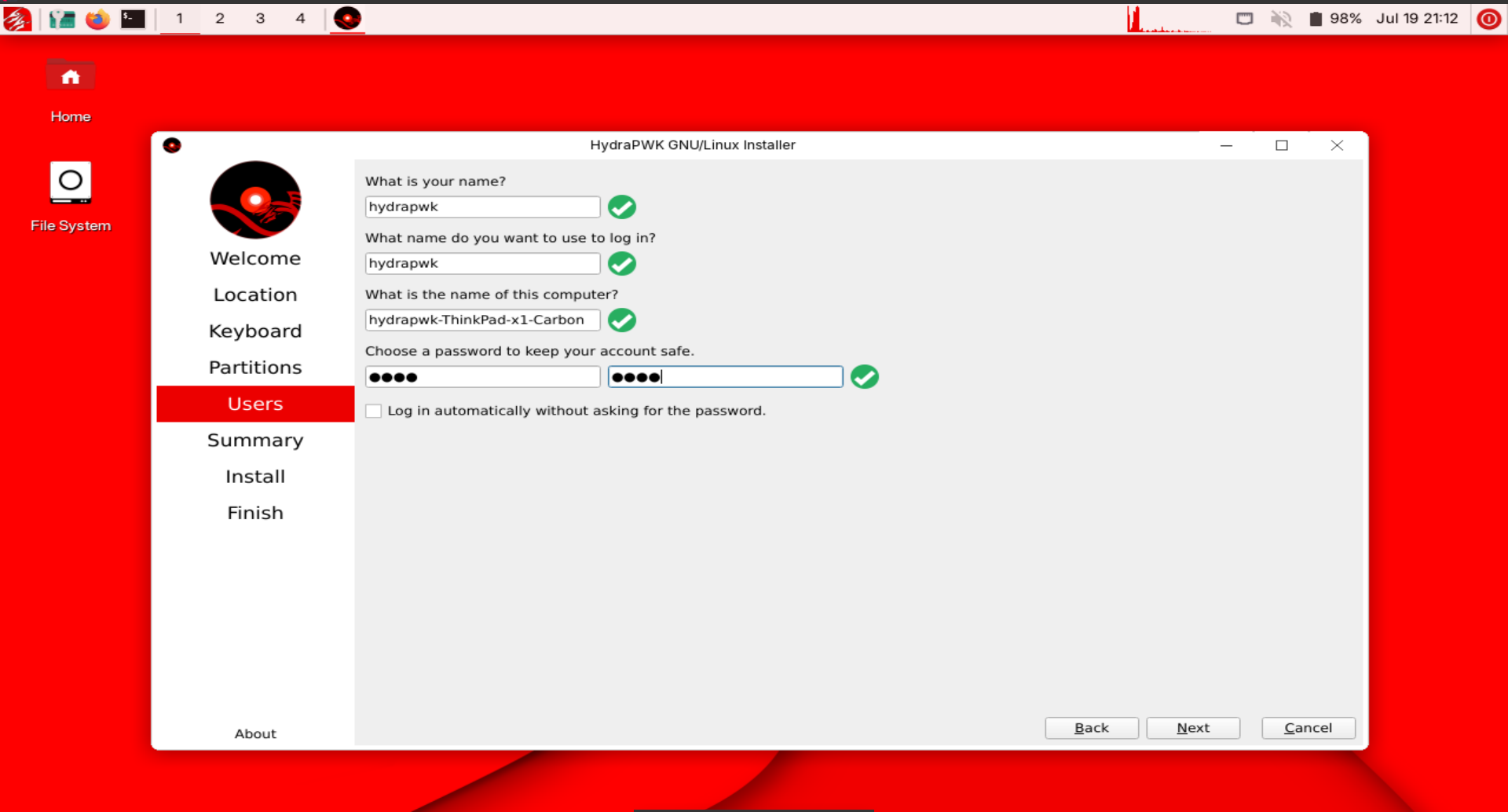
2.5 NetHydra calamares - User setup.
in this setup you will seen user setup screen.
eg:
username: nethydra
login name: nethydra
yourcomputername: nethydracomputer
password: toor
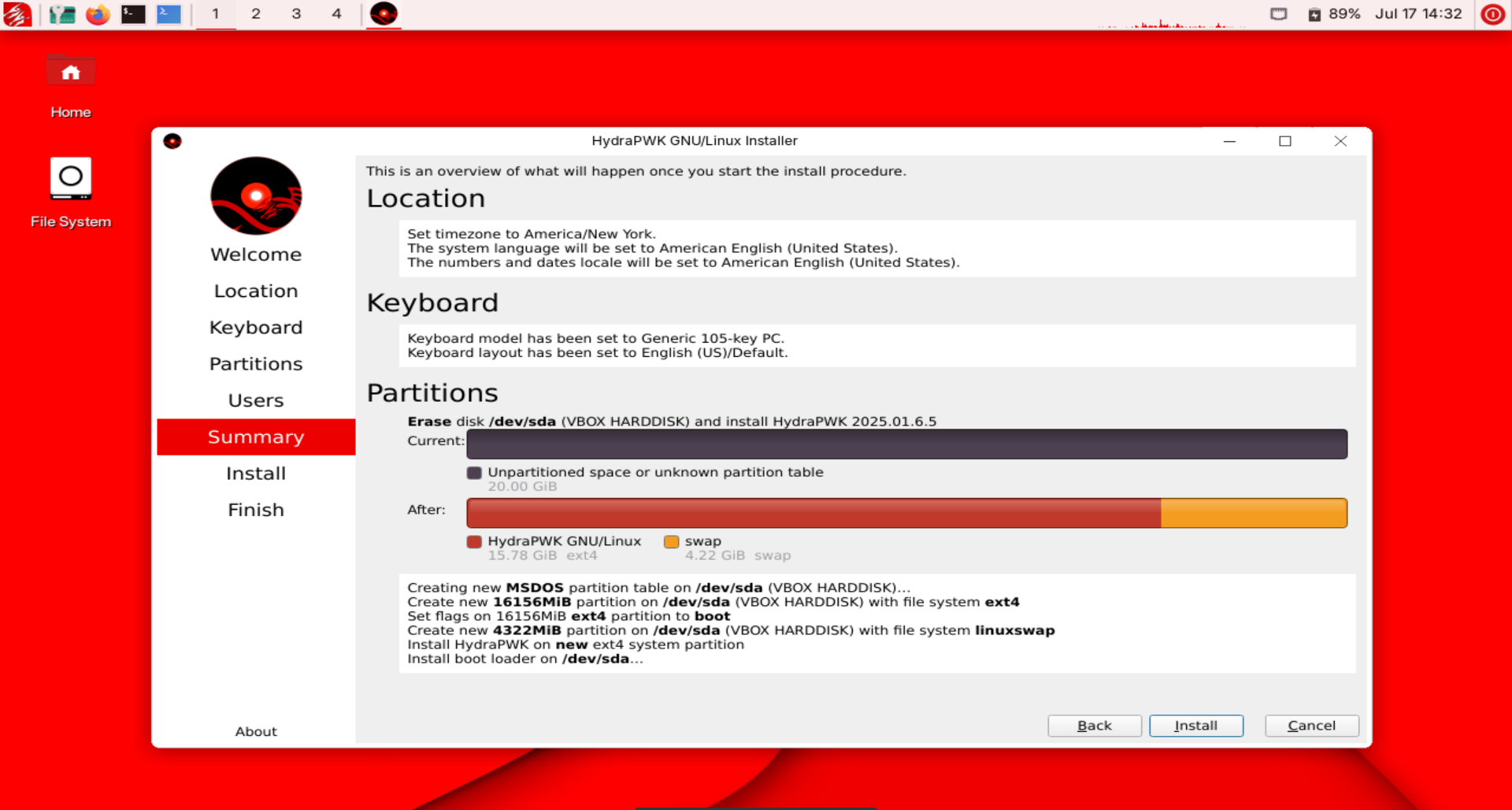
2.6 NetHydra calamares - Confirmation.
This is the last step, you may will seen.
This is confirmation screen, after you click next all data in your computer will wiped, and you can comeback.
after you sure what are you choise just click install.
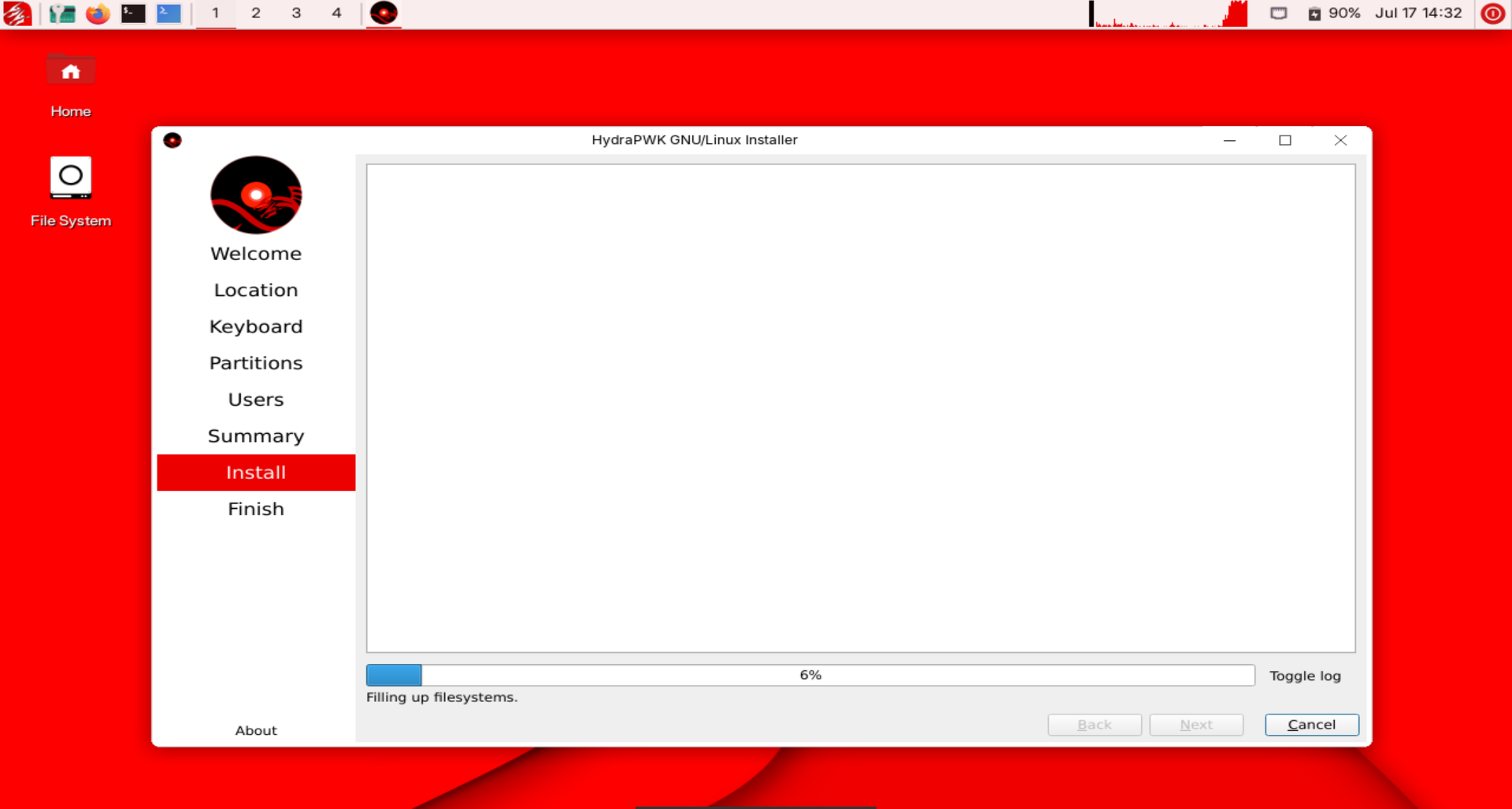
2.7 NetHydra calamares - Installation proccess.
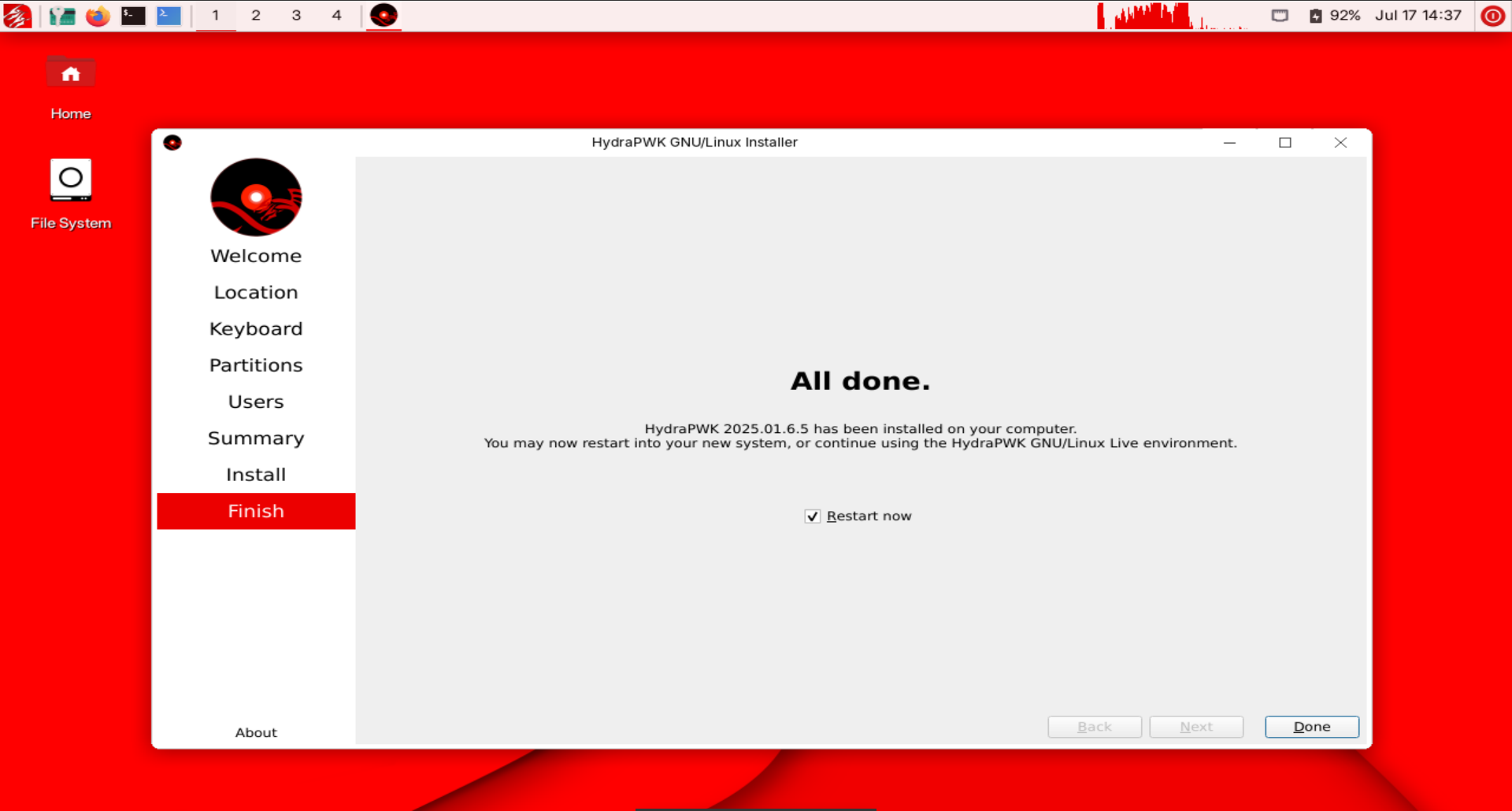
Wait until installation done, after that you can click finish and your computer automatically reboot, when your computer reboot you can unplug installation media!.
End
You can reboot and dont forgot to unplug your Bootable Media